Blog post
WhatsApp Shared Inbox for Teams: Run One Number with Many Agents
How to run one WhatsApp number with many agents: assignment rules, notes that survive handovers, response-time targets and who does what.
A WhatsApp shared inbox for teams lets several people answer customers from one business number, with every chat, note and past message visible to whoever picks it up next. It replaces the shop phone passed between desks and the personal numbers that leave with the employee. To run one well you need three things: a clear rule for who owns each chat, a habit of leaving context for the next person, and response-time targets the team actually checks.
Signs that one phone is no longer enough
Most teams start on a single handset running the WhatsApp Business app. That works until the number of chats outgrows one pair of hands. Watch for these signs:
- Customers wait hours because the person holding the phone is in a meeting or on leave.
- Two people reply to the same customer with different prices.
- Nobody knows what was promised in a chat from last week.
- Sales staff use personal numbers, so customer history leaves with them when they move on.
- The owner cannot see how many enquiries came in or how many went unanswered.
If two or more of these sound familiar, it is time to move the number to the platform. Our comparison of the WhatsApp Business app vs the API covers what changes when you switch.
What do you need before day one?
A shared inbox runs on the WhatsApp Business Platform, not the WhatsApp Business app. You need a Meta Business Portfolio, a WhatsApp Business Account and your number connected to the platform. A number can be on the app or the platform, not both at once, so pick a quiet day for the move.
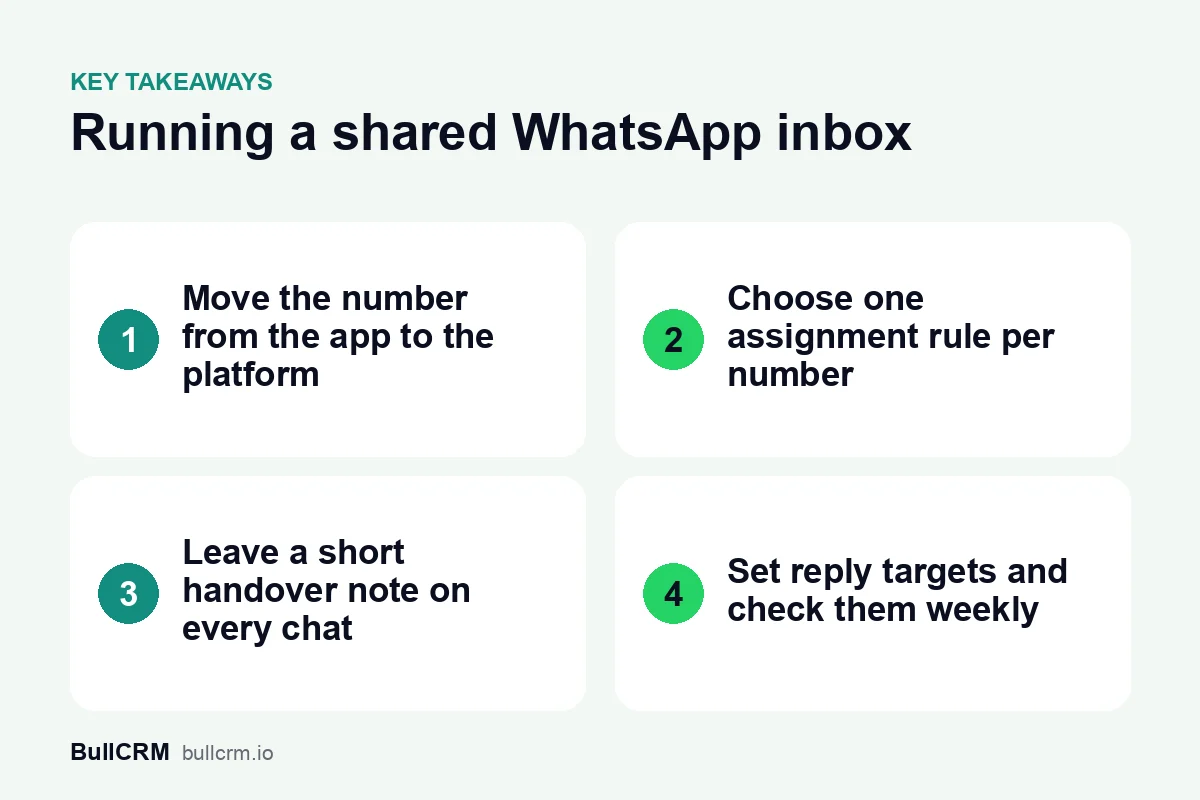
Before you invite the team, settle these decisions so the first week is calm:
- Who is on the inbox, and at which hours each person is available.
- How chats are assigned, which is covered in the next section.
- Ten quick replies for the questions you get most, such as price lists, timings and location.
- A small set of tags, such as new enquiry, quote sent, complaint and closed.
- Business-hours and away messages, so customers who write at night know when to expect a reply.
For background on how the platform is structured, Meta's WhatsApp Business Platform overview is a useful starting point.
Choosing an assignment model
Assignment answers one question: whose job is this chat right now? Without a rule, everyone assumes someone else has it. Pick one model per number and change it only after a few weeks of data.
| Model | How it works | Suits |
|---|---|---|
| Round-robin | New chats are shared in turn across the team | Sales teams handling similar enquiries |
| Single owner per number | One person owns every chat on that number | A branch, a showroom or a key-account desk |
| Manual by a team lead | A supervisor reads new chats and assigns them by hand | Mixed enquiries that need judgement |
| Bot first, then a person | An automation answers routine questions and hands over the rest | High volumes of repeated questions |
In BullCRM's WhatsApp Hub, the shared team inbox supports round-robin and single-owner rules per number, plus manual assignment and one-click takeover from a bot. Sales teams that route leads this way can see the full set-up on the WhatsApp for sales teams page.
An example from a showroom team
For example, a furniture retailer with two showrooms in Lucknow might connect one number per showroom and give each a single owner. Enquiries from its website go to a third number on round-robin across the online sales team. Each customer always deals with the same small group, and the owner can still see every chat.
Keeping context when a chat changes hands
Handovers happen every day: shifts end, people go on leave, and a sales chat turns into a support issue. The customer should never have to repeat their story.
- Internal notes sit inside the conversation and are visible only to your team.
- Tags and custom fields show the chat's stage at a glance, and follow-up reminders bring it back on time.
- Saved views filter chats, for example "quote sent, no reply", with live counts.
- Chat summaries created with AI help the next person catch up in seconds.
- The CRM record beside the chat shows past deals and activity, and you can create a lead from any chat.
Linking chats to customer records is a topic of its own; our guide to WhatsApp CRM integration explains what to sync and why.
A handover note your team can copy
Wants: 3-seater sofa in grey, delivery before Diwali. Promised: revised quote by Thursday. Next step: send quote and ask for delivery address. Watch out: price-sensitive, compared us with another store.
Four short lines like these save a five-minute scroll through the history.
Setting response-time targets inside the 24-hour window
When a customer messages you, a 24-hour customer service window opens. Inside it you can reply with normal, free-form messages; once it closes, you need an approved template to restart the conversation. Our guide to the WhatsApp 24-hour customer service window covers the details.
Set your own targets, write them down and review them weekly. A practical starting point is a first-reply target for business hours, a stricter one for new sales enquiries, and a rule that no chat ends the day unanswered. Support teams can find more on queues and quick replies on the WhatsApp for customer support page.
Replies are service messages. At the time of writing (October 2026), each number gets 1,000 free service messages a month, after which each delivered service message to India costs ₹0.1438 on BullCRM. Check the live rates by country if you serve customers abroad.
Who does what on a shared inbox?
Clear roles stop chats from falling between people. Even a team of three benefits from writing these down.
| Role | Daily responsibilities |
|---|---|
| Agent | Replies to assigned chats, adds notes and tags, sets follow-up reminders |
| Team lead | Watches unassigned and overdue chats, reassigns during leave, reviews quality |
| Owner or admin | Sets assignment rules, quick replies and away messages, reads the weekly numbers |
| Chatbot | Answers routine questions and collects details before handing over |
A 20-minute weekly inbox review
A shared inbox drifts without a regular check. Block twenty minutes every Monday for the team lead and the owner, and walk through the same list each time.
- Open chats older than two days. Close them, reassign them or set a follow-up reminder.
- Unassigned chats. Any chat without an owner shows a gap in your assignment rule.
- Response times against your targets. Look at the slowest day and ask what caused it.
- Quick replies. Retire the ones nobody uses and add replies for questions that came up three or more times.
- Tags. Merge tags that mean the same thing, so saved views stay accurate.
- Bot handovers. Read a few chats the bot passed on and see whether it could have answered them.
Keep a short note of what you changed each week. After a month, you will have a clear record of how the inbox improved and where it still needs work.
Frequently asked questions
Can several agents reply from one WhatsApp number?
Yes. On the WhatsApp Business Platform, your whole team can answer from one shared inbox on the same business number. Assignment rules decide who owns each chat.
Can we keep using the WhatsApp Business app on the same number?
No. A number can be on the WhatsApp Business app or the platform, not both at once. Once it moves to the platform, the team works from the shared inbox instead of the phone.
Do customers see internal notes?
No. Internal notes are visible only to your team. Customers see only the messages you send them.
Which WhatsApp Hub plans include the shared team inbox?
The Growth plan (₹1,199 a month, up to 3 users and 3 numbers) and the Enterprise plan (₹1,499 a month, up to 5 users and 10 numbers) include it. The Starter plan is for a single user. Plan fees exclude GST, which is added on the invoice.
A shared inbox works best when the rules are simple and written down before launch. Compare the plans and user limits on the WhatsApp Hub pricing page to choose the right fit for your team.