Blog post
WhatsApp Message Template Examples for Every Business Moment
Copy-ready WhatsApp template examples for orders, bookings, payments, support, lead follow-ups and offers, plus the writing habits that keep templates clear and easy to approve.
A good WhatsApp template reads like a short note from a person who knows the customer, not like a form letter. This library gives you ready-to-adapt examples for the moments most businesses message about: orders, bookings, payments, support, lead follow-ups and offers. Change the wording to match your voice, keep the structure, and you have a template that is quick to read and quick to act on.
In every example, words in square brackets such as [Name] or [Order number] are placeholders. When you create the template, these become variables that are filled in for each customer at the time of sending.
Before you copy an example
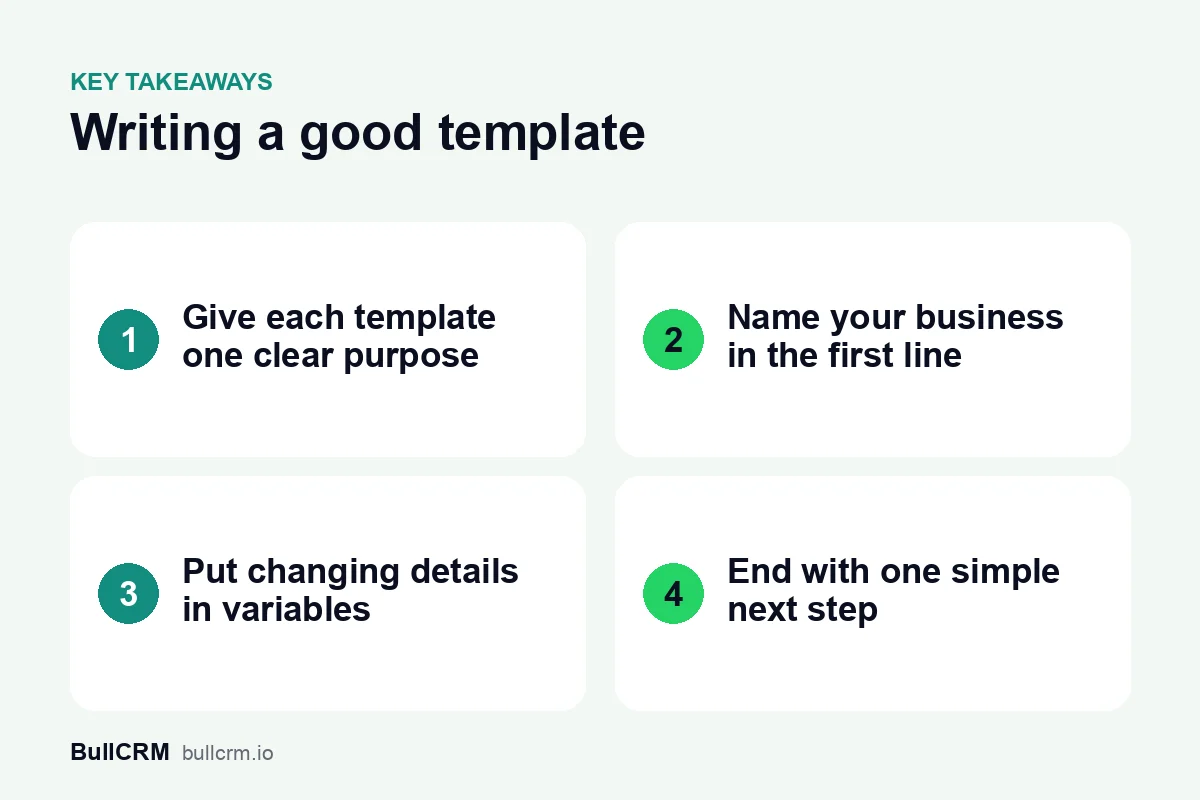
Three habits make the difference between a template that gets approved and used, and one that gets rejected or ignored:
- One template, one job. An order update should update; an offer should sell. Mixing the two blurs the purpose and the category. Our guide to WhatsApp template categories explains how categories work.
- Say who you are. Name your business early, so the customer knows the message is expected.
- Keep variables for details. Names, dates, numbers and links change; the sentence around them should not. A template made mostly of blanks hides what it is for, which is a common reason for template rejections.
Order and delivery updates
These are messages the customer is waiting for. Keep them short and lead with the fact they care about.
Order confirmed: Hi [Name], thanks for shopping with [Business]. Your order [Order number] is confirmed and we are getting it ready. We will message you here when it ships.
Order shipped: Good news, [Name]. Your [Business] order [Order number] is on its way. You can follow it here: [Tracking link].
Out for delivery: Hi [Name], your order [Order number] is out for delivery today. Please keep your phone handy in case the delivery partner calls.
Delivered: Your [Business] order [Order number] has been delivered. If anything is not right, reply to this message and our team will help.
For a complete plan of messages from checkout to review, see our guide to WhatsApp for ecommerce order updates.
Bookings and appointments
Booking confirmed: Hi [Name], your [Service] at [Business] is booked for [Date] at [Time]. Reply here if you need to change it.
Reminder: A quick reminder from [Business]: your appointment is on [Date] at [Time] at [Location]. See you then.
Rescheduled: Hi [Name], your appointment with [Business] has moved to [Date] at [Time]. If this does not suit you, reply and we will find another slot.
Clinics and coaching centres use these every day; our guides for clinics and admissions teams show how they fit into a full workflow.
Payments and accounts
Payment received: Hi [Name], we have received your payment for [Order or invoice number]. Thank you for choosing [Business].
Invoice ready: Your invoice [Invoice number] from [Business] is ready. You can view it here: [Link].
Renewal reminder: Hi [Name], your [Plan or service] with [Business] renews on [Date]. Reply here if you have any questions before then.
If you collect payments in the chat itself, our guide to UPI payments on WhatsApp covers the whole flow.
Support and service
Request received: Hi [Name], we have received your request [Ticket number]. Someone from [Business] will reply here soon.
Issue resolved: Your request [Ticket number] has been marked as resolved. If the problem comes back, just reply to this message.
Feedback: Thanks for contacting [Business], [Name]. How did we do today? Tap a button below to tell us.
Lead follow-ups
Enquiry received: Hi [Name], thanks for your interest in [Product or service] from [Business]. What would you like to know first?
Callback booked: Hi [Name], [Agent name] from [Business] will call you on [Date] at [Time] about your enquiry.
Quote ready: Hi [Name], your quote for [Product or service] is ready: [Link]. Reply here with any questions.
Leads from ads often arrive outside business hours. Our ad leads reply playbook covers what to send first and when.
Offers and announcements
Promotional messages work best when they go to people who asked to hear from you and when each one has a single, clear offer.
New arrivals: Hi [Name], new [Collection] has just arrived at [Business]. Take a look: [Link]. Reply STOP to opt out of offers.
Back in stock: The [Product] you liked is back in stock at [Business]. Order here while it lasts: [Link].
Event invite: You are invited to [Event] at [Business] on [Date]. Tap below to save your spot.
We miss you: Hi [Name], it has been a while since your last visit to [Business]. Here is something new we think you will like: [Link].
Before you send offers to a large list, read our WhatsApp broadcast playbook and our guide to frequency capping, which explains why too many marketing messages can stop reaching people.
Add buttons that do the work
Buttons turn a message into an action. Two kinds cover most needs:
- Quick replies such as "Confirm", "Reschedule" or "Talk to us" let the customer answer in one tap, and the reply lands in your inbox as a normal message.
- Call-to-action buttons open a link or start a phone call, which suits tracking pages, invoices and booking pages.
Use one or two buttons with clear labels rather than many vague ones. If the next step is a form, WhatsApp Flows let the customer fill it in without leaving the chat.
Turn examples into your own templates
- Write the way you speak to customers. A clinic and a fashion brand should not sound the same.
- Read it on a phone. If the main point is not visible before the customer scrolls, shorten it.
- Use sample values that make sense. When you submit a template, realistic sample values help reviewers understand it.
- Keep a small set. Ten well-written templates that your team knows beat fifty near-duplicates.
Creating templates in Bellow
In Bellow you can create templates with variables and buttons, have AI draft the wording from a short description, and submit them for approval. Once approved, the same template can be used in broadcasts, in automated follow-up sequences and when a teammate starts a conversation from the shared inbox.
Frequently asked questions
Can I use these examples word for word?
Yes, but they work better when you adapt them to your tone, your product names and the details your customers expect.
Why do the examples use [brackets]?
The brackets mark details that change for each customer. When you create the template, each one becomes a variable that is filled in at sending time.
Should I add an opt-out line to offers?
For promotional messages, a short line such as "Reply STOP to opt out" makes it easy for people to leave without blocking you. Our opt-in guide covers consent in more detail.
How many buttons should a template have?
Usually one or two. Fewer, clearer choices are easier to tap and easier to understand.