Blog post
WhatsApp Flows: How to Collect Customer Details Inside the Chat
What WhatsApp Flows are, which fields a form can include, how to send one in a chat or a template, and how to map every answer to your CRM.
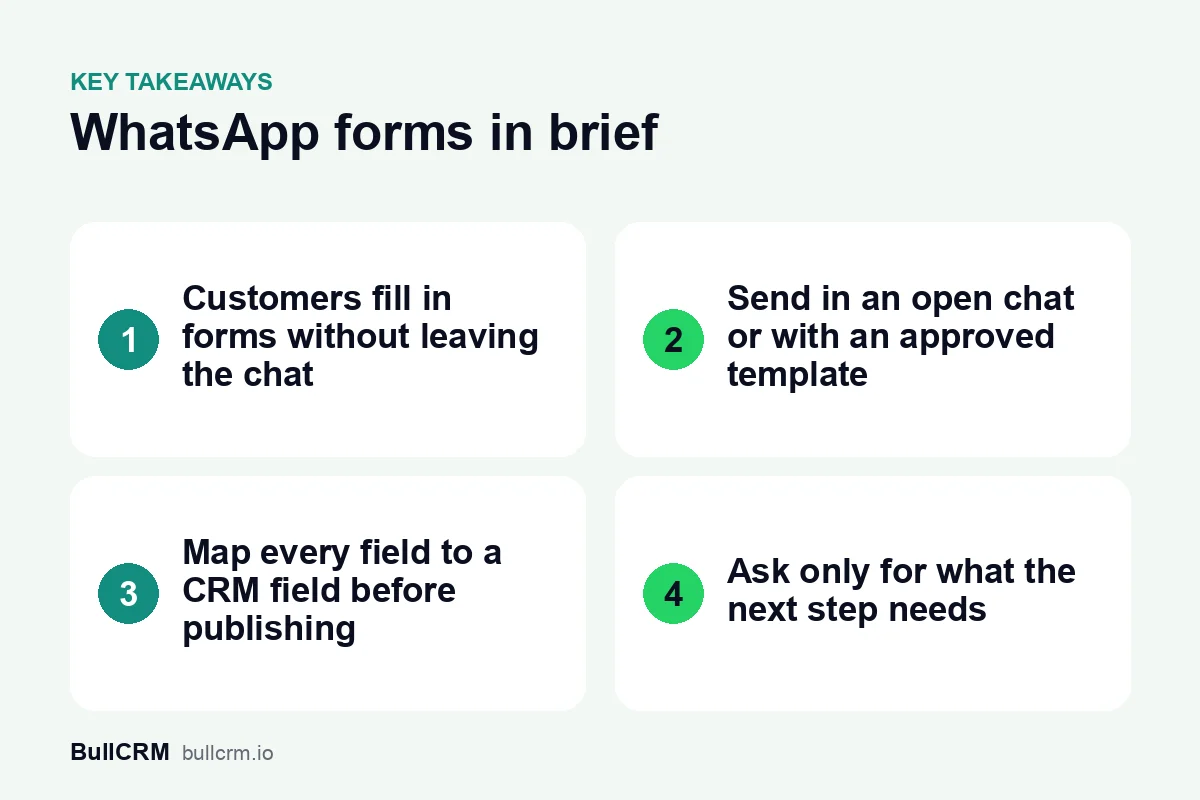
WhatsApp Flows are forms that customers fill in without leaving the WhatsApp chat. Instead of asking for a name, city and budget one message at a time, you send a single form with a button. The customer completes it on their phone, and the answers come back to your business, ready to save on a CRM record.
What are WhatsApp Flows?
Meta describes WhatsApp Flows as a way to build structured interactions for business messaging. A Flow can have one screen or several, with headings, text and input fields, and it opens from a button inside the chat. Meta's WhatsApp Flows documentation lists generating leads and recommending products among the uses, and its example guides cover pre-approved loan leads, insurance quotes, collecting purchase intent and personalised offers.
For most sales and support teams, the everyday use is simpler: collecting the details the next step needs. A travel agent needs dates and group size, a coaching institute needs the course and batch timing, and a furniture store needs the city and room size. A form gathers all of it in one go, in a consistent format.
Why use a form instead of asking questions one by one?
Asking questions in separate messages works for one or two details. Beyond that, it slows the chat down and leaves answers scattered across the conversation, where someone has to copy them into the CRM by hand.
- Consistent answers. Choice fields such as a dropdown or single choice give you the same spelling of every city or product, so you can filter and report on them later.
- Clean records. When each field is mapped to a CRM field, the budget lands in the budget field rather than in a note.
- Less typing for the customer. Tapping an option on a phone is easier than writing a full reply.
- Less work for your team. Agents stop retyping details from chats, and the next person to pick up the lead sees everything in one place.
A form does not replace conversation. Use it for the facts you need, and keep the chat for the questions that need a person.
Which fields can a WhatsApp form include?
The form builder in Bellow's WhatsApp Forms feature supports the input types below, plus headings, body text and images to explain each screen. Forms can run across more than one screen, so a longer form can be split into short steps.
| Field type | Use it for | Example question |
|---|---|---|
| Text, Email, Phone, Number | Short typed answers | "What is your email address?" |
| Paragraph | Longer free text | "Tell us about your requirement" |
| Date | Preferred dates | "When would you like to visit?" |
| Single choice, Dropdown | One option from a list | "Which city are you in?" |
| Multi choice | Several options from a list | "Which products interest you?" |
| Opt-in | Permission to send further messages | "Send me updates about my enquiry" |
| Photo upload, Document upload | Files the customer shares | "Upload a photo of the room" |
Use choice fields for anything you will sort or filter on later, and keep typed fields for details that cannot be listed, such as an email address.
How do you send a WhatsApp form to a customer?
Meta's guide to sending a Flow describes two routes, and which one you use depends on whether the customer has messaged you recently.
| Situation | How the form is sent | In Bellow |
|---|---|---|
| The customer messaged you and the customer service window is open | As a message with a button that opens the form | Send it from the chat in the inbox, or save it as a quick reply |
| No open window, or you are starting the conversation | As an approved message template with a Flow button | Add a Complete Flow button when you create the template |
The first route follows Meta's rule that non-template messages can only be sent in an open 24-hour customer service window, which opens and resets with each message from the customer. Meta's pricing documentation sets out that rule, and our guide to the WhatsApp 24-hour window explains what it means for your team day to day.
For the second route, the template goes through Meta's review like any other, and the button label on a Flow template can be at most 25 characters. The template's category depends on what the message says, so read our guide to WhatsApp template categories before you write it.
Write a button label that says what happens
"Get my quote", "Book a visit" or "Share details" tells the customer what the form is for. A vague label such as "Click here" gives them no reason to open it.
How do form answers reach your CRM?
A form is only as useful as what happens to its answers. In Bellow, you map each form field to a CRM field before publishing, so a submission fills in the record instead of sitting in the chat.
- Create or update the right record. Answers can be saved to a lead or a contact. If the chat is already linked to a lead, that lead is updated rather than duplicated. Whether a chat without a lead gets a new one depends on your number's CRM settings, and the owner of a new lead gets a notification.
- Prefill what you already know. When the name or phone field is mapped, the form can open with the customer's WhatsApp name and number already filled in.
- Reply automatically. A thank-you message can go out in the chat as soon as the form is submitted.
- Pass answers to other systems. On plans that include webhooks, each submission can also be sent to a webhook URL.
- Review and export. Every response is listed against the form and can be exported.
Mapped answers then sit in your lead and pipeline management views next to the rest of the record. For the wider picture of linking chats and CRM records, read our guide to WhatsApp CRM integration.
How do you build your first WhatsApp form?
Start from the next step in your sales or support process, not from a list of everything you would like to know.
- Name the next step. A quote, a callback, a site visit or a demo. The form should collect only what that step needs.
- List the fields. Write each one as a plain question in the words your customers use.
- Prepare the CRM. Create any custom field the form needs before you map it.
- Build the screens. Group related questions and keep each screen short enough to read on a phone.
- Map every field. Connect each answer to a lead or contact field.
- Publish to Meta. A form has to be published before it can be sent on WhatsApp.
- Test it on your own phone. Submit it once and check that the record looks right.
For example, a coaching centre in Pune could send a two-screen form to course enquiries: the first screen asks for the course and preferred batch timing, and the second asks for the student's name and city. The counsellor then calls with the right batch in hand. Our page on WhatsApp for education and admissions shows how this fits into an admissions process.
Keep forms tidy as they change
Questions change over time. Bellow keeps a version history for each form, so you can restore an earlier version if an edit breaks your field mapping. You can also clone a form to try a new design, archive forms you no longer use, and sync Flows you already built in your Meta account.
What should a WhatsApp form not ask for?
Meta asks businesses using Flows to follow the local regulations that apply to handling user data and to keep their use case within its Business Messaging Policy. In practice, that starts with asking for less.
- Ask only for details the next step needs, and say at the top of the form why you need them.
- Do not ask for card numbers or banking passwords in a form.
- Use the opt-in field when you want permission to send further messages, and make clear what the customer is agreeing to. Our WhatsApp opt-in guide covers what Meta requires.
For enquiries that start on your website rather than in WhatsApp, the same thinking applies to web forms that create CRM leads, and our guide to turning web forms into CRM leads covers that side.
Frequently asked questions
Can I send a form to someone who has not messaged me recently?
Yes, through an approved message template with a Flow button. As with any business-initiated message, the customer must have opted in to hear from you.
Can I edit a form after it is published?
Yes. In Meta's terms, editing a published Flow creates a draft, and the last published version is what customers receive until you publish again. In Bellow, you can also restore earlier versions or clone a form.
Will a form create duplicate leads?
Not for the same chat. If the chat is already linked to a lead, the answers update that lead instead of creating another one.
Can I use Flows I already built in Meta?
Yes. Sync them from your Meta account into Bellow, then map their fields to your CRM.
A short form at the right moment saves your team and your customers a lot of back-and-forth. Start a free trial to build your first WhatsApp form and connect its answers to your CRM.