Blog post
How to Add a WhatsApp Chat Button to Your Website
How a WhatsApp chat button on your website works, what to customise, how to choose its quick options and how to handle chats once they arrive.
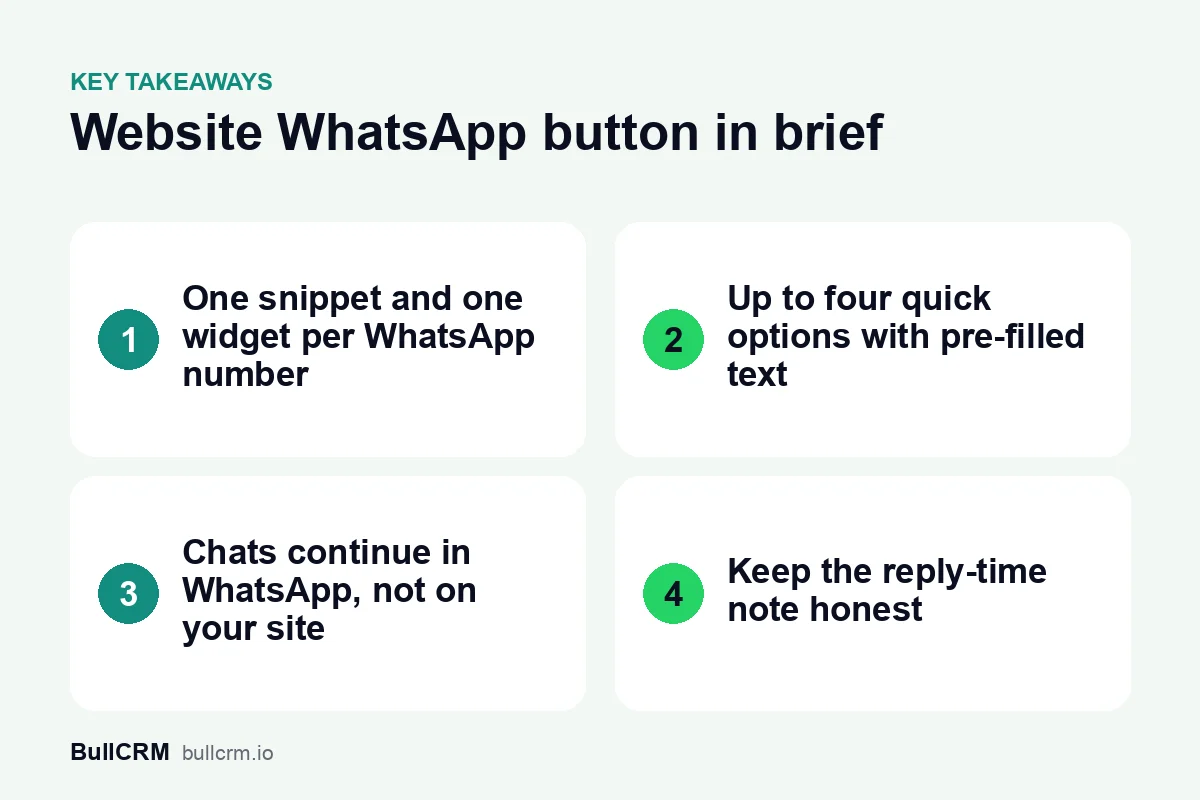
A WhatsApp chat button for your website is a small floating button that opens WhatsApp with a message to your business ready to send. You add it by pasting one snippet into your site. Once the visitor taps send, the conversation continues in WhatsApp, and your team answers it from the inbox like any other chat.
How does a website WhatsApp button work?
The button sits in a corner of every page where you add it. When a visitor taps it, a small panel opens with your business name, logo and a short welcome message, plus a few quick options such as "Pricing" or "Order status".
Choosing an option opens WhatsApp through a click-to-chat link with a pre-filled message. The visitor sends it, and that message reaches your WhatsApp number like any other.
That last step is the important difference from a live chat widget. The conversation does not happen on your website. It moves to WhatsApp, where the customer can come back to it later from their own chat list, and where your team can follow up after the visitor has left your site.
If you only need a plain link or a printed code rather than a button on your site, our guide to WhatsApp links and QR codes covers click-to-chat links in detail.
What can you customise on the chat widget?
In Bellow, the WhatsApp chat widget is set up per connected WhatsApp number. These are the settings you control:
| Setting | What you can change | Tip |
|---|---|---|
| Business name and logo | The name and image at the top of the panel | Use the same name customers see on your WhatsApp profile |
| Welcome text | The greeting shown when the panel opens | One or two friendly lines are enough |
| Reply-time note | A short line such as "Usually reply in a few minutes" | Match it to how fast your team really replies |
| Question above the options | A prompt such as "Looking for" | Phrase it so the options read naturally after it |
| Quick options | Up to four, each opening WhatsApp with its own pre-filled message | Pick the questions your team answers most |
| Position and margins | Bottom left or bottom right, with adjustable spacing | Keep it clear of other buttons on the page |
| Style | Compact or expanded | Check both on a phone before you choose |
| On or off | Switch the widget off and on from your account | Useful during holidays, with no change to your website code |
Because the widget loads its settings from your account, changes to the text, logo, options or position show up on your site without pasting the snippet again.
How do you add the widget to your website?
You do not need a developer. If your website or site builder accepts embed code, you can add the widget yourself.
- Connect your WhatsApp number to Bellow, if you have not already.
- Design the widget for that number: name, logo, welcome text, reply-time note and quick options.
- Choose the position and style, and set the margins so it does not cover anything important.
- Copy the embed snippet and paste it into your website wherever your builder accepts custom code.
- Test it on your phone. Tap each quick option, send the message and check that it arrives in your inbox.
Each connected number has its own widget settings and snippet, so a business with separate sales and support numbers can run two different widgets.
How should you choose the four quick options?
The quick options do most of the work. They decide what visitors ask about and how much your team knows before replying.
In Bellow, each option sends a pre-filled message that reads "Hi, I am interested in" followed by the option's label. So an option labelled "Pricing" sends "Hi, I am interested in Pricing", and an option labelled "a site visit" sends "Hi, I am interested in a site visit". Write labels that make sense in that sentence.
- Start from real questions. Look at the last month of chats, calls and emails, and pick the topics that come up most.
- Name the topic, not the department. "Bulk order pricing" tells your team more than "Sales".
- Keep labels short. They have to fit on a phone screen and read well inside the pre-filled message.
- Drop the rarest topic. Four is the limit, and a general option still catches everything else.
For example, an interior design studio in Lucknow could use "a quote", "a site visit", "modular kitchen ideas" and "my project status". The team then knows from the first message whether the chat is a new enquiry or an existing client.
Where should the button go, and on which pages?
Placement decides whether the button helps or gets in the way.
- Put it on the side away from cookie notices, other chat bubbles and bottom navigation bars.
- Adjust the margins so it never hides a buy, call or submit button, especially on phones.
- If you run separate numbers, use the sales widget on product and pricing pages and the support widget on help and order pages.
- Keep another way to reach you, such as email or a phone number, elsewhere on the page for visitors who do not use WhatsApp.
What happens after the visitor sends the message?
Once the message arrives, normal WhatsApp Business Platform rules apply. Meta's pricing documentation explains that non-template messages can only be sent in an open 24-hour customer service window, which opens and resets with each message from the customer. Reply inside that window and your team can answer freely. After it closes, you need an approved template. Our guide to the WhatsApp 24-hour window covers how to plan replies around it.
Before you message a widget visitor later with templates, check that you have their opt-in. Meta's opt-in requirements say businesses must have the person's phone number and their opt-in before messaging them, and the opt-in must clearly name the business. Our WhatsApp opt-in guide explains how to collect it.
To make sure widget chats get a quick, useful answer:
- Answer from a shared inbox. Widget chats arrive in your WhatsApp shared team inbox, where they can be assigned and picked up by whoever is free.
- Cover the hours your team cannot. A WhatsApp chatbot can greet new chats, answer common questions and hand over to a person.
- Collect details in one step. Instead of asking question after question, send a form inside the chat. Our guide to WhatsApp Flows and forms shows how.
- Keep the history with the customer. When chats sit next to the CRM record, the next person sees what was already discussed. Read more in our guide to WhatsApp CRM integration.
Website widget, link or QR code: which do you need?
All three open a WhatsApp chat with your business. They suit different places.
| Website chat widget | Click-to-chat link | QR code | |
|---|---|---|---|
| Best for | Visitors already on your website | Social bios, emails, ads and messages | Shop counters, packaging and print |
| Choice of topic | Up to four quick options | One pre-filled message per link | One pre-filled message per code |
| How to create it | Set up in your Bellow account | Free WhatsApp link generator | Free WhatsApp QR code generator |
Most businesses use more than one: the widget on the website, a link in the Instagram bio and a QR code at the counter, all leading to the same inbox.
Frequently asked questions
Do I need a developer to add the widget?
No. Copy the snippet and paste it into your website or site builder, the same way you would add any other embed code.
Does the chat happen on my website?
No. The widget opens WhatsApp with a pre-filled message, so the conversation continues in WhatsApp and reaches your team inbox.
Can I have different widgets for different numbers?
Yes. Each connected WhatsApp number has its own widget settings and its own snippet.
Can I hide the widget for a while?
Yes. Switch it off in your account and it stops showing on your site. Switch it back on when you are ready, without touching your website code.
A well-placed button with clear quick options turns website visitors into conversations your team can follow up. Start a free trial to set up a WhatsApp chat widget for your number.