Blog post
Kanban Board for Sales: Run Your Pipeline Visually
How to run a sales pipeline on a Kanban board: choosing columns, moving cards, reading column totals, closing dates on won deals and a month-by-month forecast.

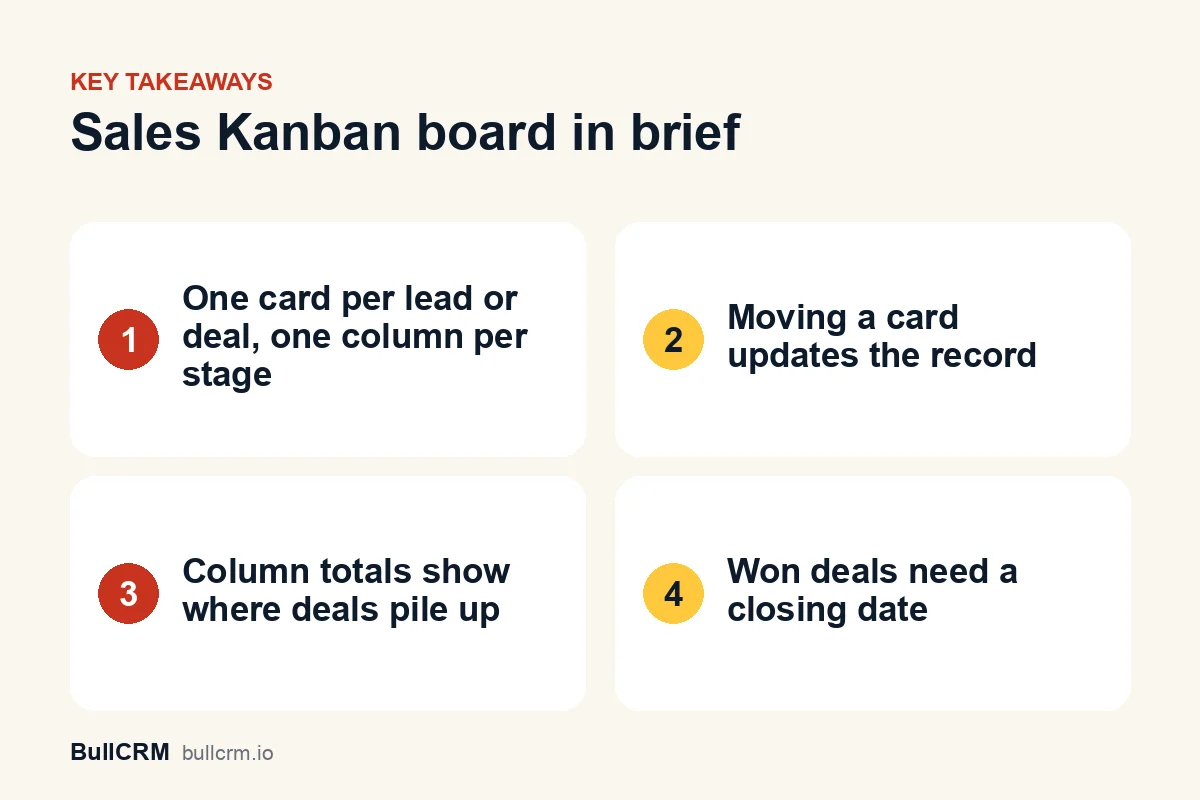
A Kanban board for sales shows each lead or deal as a card in a column for its current stage. Moving a card to the next column updates the record, so the board is both the to-do list and the pipeline report. It works best with clear stages, totals on each column and a regular weekly review.
What is a sales Kanban board?
Kanban is a way of showing work as cards that move across columns from left to right. In sales, the columns are usually lead statuses or deal stages, and each card is one lead or deal with its owner and key details on it.
The board answers questions a long list hides: where deals pile up, which columns are empty, and who owns what. Our guide to sales pipeline stages covers how to choose stages and write exit criteria. This guide is about running the pipeline on a board day to day.
When should you use List, Board or KPI view?
In BullCRM, the Leads and Deals pages have a List | Board | KPI switch, and each view suits a different job:
| View | Best for | Typical moment |
|---|---|---|
| List | Filtering, sorting and scanning many records as rows | Cleaning up data or finding one record |
| Board | Seeing and moving work by stage, owner or another field | Daily stand-up and weekly pipeline review |
| KPI | Summary numbers, plus a month-by-month forecast on Deals | Monthly planning and target checks |
The page remembers the layout you last used. Other CRM lists, including contacts, tasks, opportunities and campaigns, also have a board, and meetings add a calendar.
How do you set up columns on the board?
A board groups cards by one field. By default, Leads are grouped by Lead Status and Deals by Stage, but you can choose another field:
- Leads: Lead Status, Lead Source, Industry, Rating or Lead Owner.
- Deals: Stage, Lead Source, Type (New Business or Existing Business) or Deal Owner.
- Your own fields: any active Dropdown or Radio custom field on that module.
Grouping by owner turns the board into a workload view, which helps a manager rebalance work. Grouping by source shows which channels are feeding the pipeline. The stages themselves are the ones you configure for your lead and pipeline management.
Save the layouts you use often
Customize view lets you hide columns you never use and change the column order. Save the result as a named view. Each person gets a default view, can keep several others, and can copy a link to share a view. A colleague who opens that link sees it read-only, and any changes they make are saved as their own copy.
What happens when you move a card?
Dragging a card to another column updates that field on the record, exactly as if you had edited it on the record page. Moving a deal from Proposal/Price Quote to Negotiation/Review changes its stage; moving a lead to another owner's column reassigns it.
Permissions still apply. You need edit permission on the module to move cards, and moving a card between owner columns also needs permission to change the owner. People who may only work on their own records can move only their own cards. If a move fails, the card returns to its original column and an error message explains why.
The closing-date prompt on won deals
A deal in Closed Won must have a closing date, because revenue reports count won deals by that date. If you drop a deal into Closed Won and it has no closing date, the board asks for one. Pick the date and save, and the move completes. Cancel, and the card goes back to the column it came from.
This small step keeps your revenue numbers honest. Without it, won deals with blank dates would quietly drop out of monthly reports and sales targets.
Add records from the board
On Leads and Deals, a + button under each column header opens a quick form for a new record that starts in that column, so you can log a new enquiry without leaving the board.
What does each card show?
A good card carries just enough to decide the next step without opening the record. On the Deals board, each card shows the deal name, the account or company, the amount, the owner's avatar and the expected close date. Clicking a card opens the full record.
Because the expected close date sits on every card, a stale date is easy to spot during a review. If a deal's date has already passed and it is still open, either the date or the stage is wrong, and the owner should fix it before the meeting ends. Keeping deal names specific, such as the customer and product rather than "New enquiry", also makes the board readable at a glance.
How do column totals help you read the pipeline?
Each column header shows how many records it holds. On the Deals board, it also shows the total deal value in your default currency, converting deals in other currencies the same way the deal list does.
Read the totals left to right and look for shape, not just size:
- A heavy early column with thin later ones means deals are not progressing. Check whether follow-ups are happening.
- A heavy middle column means deals are stuck at one step, often waiting on a proposal or a decision maker.
- Thin columns everywhere means the pipeline needs more leads before it needs more selling.
- One large deal that makes a column look healthy deserves its own conversation.
Leads have no amount field, so the Leads board shows counts only.
How does the deal forecast work?
The KPI view on Deals includes a forecast laid out by month. It shows four months: the current month and the three before it. Previous month, This month and Next month buttons move the window.
- Open deals appear in the month of their expected close date.
- Won deals appear in the month of their closing date.
- Lost deals are left out.
Each month shows the open value and the won value, with the deals listed as cards underneath. The forecast is only as good as the expected close dates on your deals, so updating them belongs in every pipeline review. For the wider set of dashboard numbers, see our guide to CRM reporting and sales dashboards.
How do you run a weekly review on the board?
A board makes a pipeline review faster because everyone looks at the same picture. A simple 30-minute routine:
- Open the Deals board grouped by Stage and read the column totals.
- Go column by column from right to left, starting with deals closest to closing.
- For each deal, the owner states the next step and its date. Move cards that have actually progressed.
- Switch to the KPI view and check that expected close dates are realistic for this month and next.
- Regroup by Deal Owner to spot anyone overloaded, and reassign where needed.
Between reviews, sales automation can create follow-up tasks when a lead's status changes, and automated follow-ups keep quiet deals moving without manual reminders.
Frequently asked questions
Is a Kanban board better than a list view?
Neither is better; they do different jobs. Use the board to see and move work by stage, and the list to filter, sort and scan many records as rows. Switching between them takes one click.
Can I group the board by something other than stage?
Yes. Deals can be grouped by stage, lead source, type or owner, leads by status, source, industry, rating or owner, and both by Dropdown or Radio custom fields.
Why does the board ask for a closing date?
Because a Closed Won deal needs one. Revenue reports and targets count won deals by closing date, so the board asks for the date before it completes the move.
Can my team share one board layout?
Yes. Save the layout as a view and copy its link. Colleagues who open it see your layout read-only, and their own changes are saved as their copy.
A board turns the pipeline into something the whole team can see and act on. Start a free trial to set up your stages and run your next pipeline review on the board.