Blog post
How to Import Leads from Excel into a CRM Without Losing Data
How to move leads from Excel or Google Sheets into a CRM: clean the sheet, remove duplicates, map columns to fields, set owners and check the results.
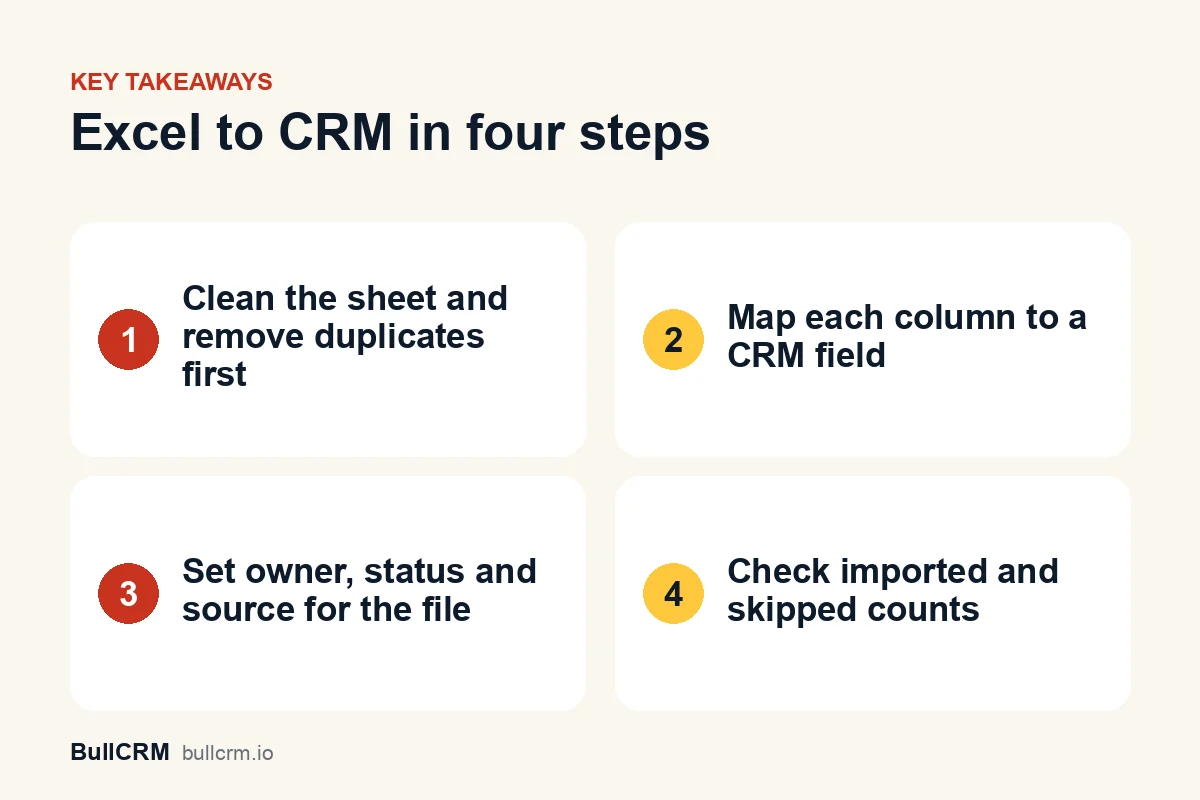
To import leads into a CRM from Excel, clean the sheet first: one header row, one lead per row and no duplicates. Save it as .xlsx or .csv, upload it, match each column to a CRM field, choose defaults such as owner and status, then check the imported and skipped counts.
Why move your leads out of a spreadsheet?
A spreadsheet is a fine place to start, but it struggles once several people work the same list. Nobody can see who called whom, follow-up dates live in someone's head, and two salespeople can phone the same lead in the same afternoon. A CRM gives every lead an owner, a status, a source and a history of every call, email and note.
If you are still deciding whether you need one, our guide to what CRM software does covers the basics. This guide assumes you have picked a CRM and want your existing leads inside it without losing anything on the way.
How do you prepare an Excel sheet for a CRM import?
A sheet built for people to read is rarely ready for a machine to read. Every problem left in the file becomes a problem in the CRM, so fix these before you upload:
- Keep one header row. The first row should hold column names such as Name, Mobile, Email and Company. Delete titles, logos and merged cells above it.
- Keep one lead per row. Remove blank rows, subtotal rows and notes typed at the bottom of the sheet.
- Give every lead a name and a way to reach them. A row needs at least a name and a phone number or email address to be useful in a CRM.
- Keep phone numbers in one format. Include the country code, for example +91, and put a second number in its own column rather than in the same cell.
- Match your dropdown values. If the CRM has a field with fixed options, such as a course or a city list, make the sheet use exactly the same spellings.
- Remove duplicates. Sort by phone number, then by email, so repeats sit next to each other, and delete the extra rows.
Why removing duplicates matters
BullCRM's import creates a new lead for every row and does not merge duplicates. If the same customer appears three times in your sheet, they appear three times in the CRM. Deleting extra rows in the sheet is easier than finding and merging records afterwards.
Moving leads from Google Sheets
If your leads live in Google Sheets, download a copy first: open the sheet and click File, then Download, and choose a file type. Google's help page on downloading a copy of a file shows the steps. Choose a format your CRM accepts, such as .xlsx or .csv.
Which spreadsheet columns map to which CRM fields?
During the import you tell the CRM which column holds which field. Common headings map like this:
| Your column | CRM field | What to know |
|---|---|---|
| Name | Full name | Split at the first space into first and last name when there are no separate name columns |
| First name, Last name | First name, Last name | First name is required unless you map Full name |
| Mobile, Phone | Mobile, Phone | Keep the country code |
| Addresses that are not valid are left blank | ||
| Company, Company Name | Company | Use the same spelling for the same company on every row |
| Designation | Job title | Useful for filtering decision-makers later |
| Pincode | Zip code | Map this one by hand; the wizard does not suggest it |
| Notes, Comments | Description | Keep one notes column rather than several |
| Your own columns, such as Course or Budget | Custom fields | Create the custom field before importing, with the same label as the column |
Fields that every lead should share, such as the lead source or status, do not need a column at all. You set them once for the whole file, as the next section shows.
How does the CRM import wizard work in BullCRM?
In BullCRM, spreadsheets come in through an import wizard in the Leads module. It reads CSV, Excel (.xls and .xlsx), OpenDocument (.ods) and plain-text files of up to 15 MB, 50,000 rows and 100 columns. A downloadable template lists every column you can import, including your own custom fields except file and image fields, so you can copy your data into it if your sheet is messy.
- Upload the file. The first row must contain your column headers, or the wizard finds no leads.
- Map columns. The wizard suggests matches for common headings such as Email, Mobile, Company Name and Designation, and you map anything else by hand. You must map First name or Full name, plus at least one contact field: Email, Phone, Mobile, LinkedIn URL or Twitter / X.
- Set defaults. Choose the status, source, industry, country and owner for every row in the file, and optionally a rating. The owner defaults to you and the country to your workspace country. Option-based custom fields can take a fixed value when you have not mapped a column to them.
- Confirm and import. The import runs with live progress and finishes with a count of leads imported and rows skipped.
Imported leads join the same pipeline as every other lead, with owners, statuses and full history. Our page on lead and pipeline management shows how they move from there,; lead lists can also be exported back to Excel.
Which rows get skipped, and why?
A skipped row is not an error in the software; it is a row the CRM could not turn into a usable lead. In BullCRM's import, a row is skipped when:
- it has no first name and no full name to split;
- it has no usable contact detail, because the email address is not valid and there is no phone, mobile, LinkedIn or Twitter value;
- a required custom field is empty and has no default, or holds a value that does not match any of the field's options;
- your plan's lead limit has been reached. These rows are counted separately as skipped because of the plan limit, and the limits for each plan are on the CRM pricing page.
For dropdown fields, the value in your sheet must match one of the field's options, either its value or its label; capital letters do not matter. For multi-select fields, separate several options with commas, semicolons or pipes.
How should you assign owners when you import?
The defaults you choose apply to every row, so one import gives every lead the same owner. When different salespeople should own different leads, you have two clean options:
- Split the file before importing. Make one file per salesperson, region or product line, and import each with its own owner and source.
- Import, then reassign. Import everything to one owner, filter the lead list and reassign leads in bulk.
Either way, decide the rule before the import, not after. Our guide to lead assignment rules compares fixed owners, round robin and routing by source.
What should you check after the import?
Run these checks before your team starts calling:
- Compare the imported and skipped counts with the number of rows in your file.
- Open five leads at random and check names, phone numbers and custom fields against the sheet.
- Filter the lead list by the source you set and confirm the total matches.
- Fix the skipped rows in a new file and import only those rows. Re-importing the whole file would create duplicates.
- Tell each salesperson how many leads they now own and when you expect first contact.
Once your old leads are in, stop new ones landing in spreadsheets. Web forms that create CRM leads and CRM integrations with WhatsApp and Click-to-WhatsApp ads add new enquiries straight to the CRM with a source attached. For what happens next, read our lead management process guide.
Frequently asked questions
Can I import leads from Google Sheets?
Yes. Download the sheet from Google Sheets as an Excel or CSV file, then upload that file to the import wizard.
Does the import merge duplicate leads?
No. BullCRM creates one lead per row and does not merge duplicates, so remove repeated phone numbers and email addresses from the file before you import it.
How many leads can I import at once?
One file can hold up to 50,000 rows and 100 columns and be up to 15 MB. The number of leads you can keep in total depends on your plan's lead limit.
Can I import my own custom fields?
Yes, except file and image fields. Custom fields appear in the mapping step and in the downloadable template. Create the field in the CRM first, and use the same label as your column heading.
A clean spreadsheet makes for a clean CRM. Start a free trial and import your first lead list today.