Blog post
Sales Targets in a CRM: How to Set and Track Them Monthly
How to set monthly lead and revenue targets for the team and each salesperson, track progress on CRM dashboards and show people the target they can act on.
Sales targets in a CRM are monthly numbers, usually leads and closed revenue, that you set for the team and for each salesperson, then compare against live CRM data. Set them from capacity rather than hope, review them weekly, and show each person only the target they can act on.
What should a monthly sales target measure?
Most small and mid-sized sales teams need only two targets. One measures demand coming in, the other measures money coming in. Everything else, such as calls made or meetings booked, explains why those two numbers moved.
| Target | What it counts | Who it helps |
|---|---|---|
| Lead target | New leads created in the month | Marketing and anyone who generates their own leads |
| Revenue target | Deals marked Closed Won, by closing date | Salespeople, managers and owners |
Keep the definitions fixed. If revenue means "Closed Won with a closing date in the month", do not count deals that are merely verbal yeses. A target only works when everyone agrees what counts toward it.
How do you set a realistic sales target?
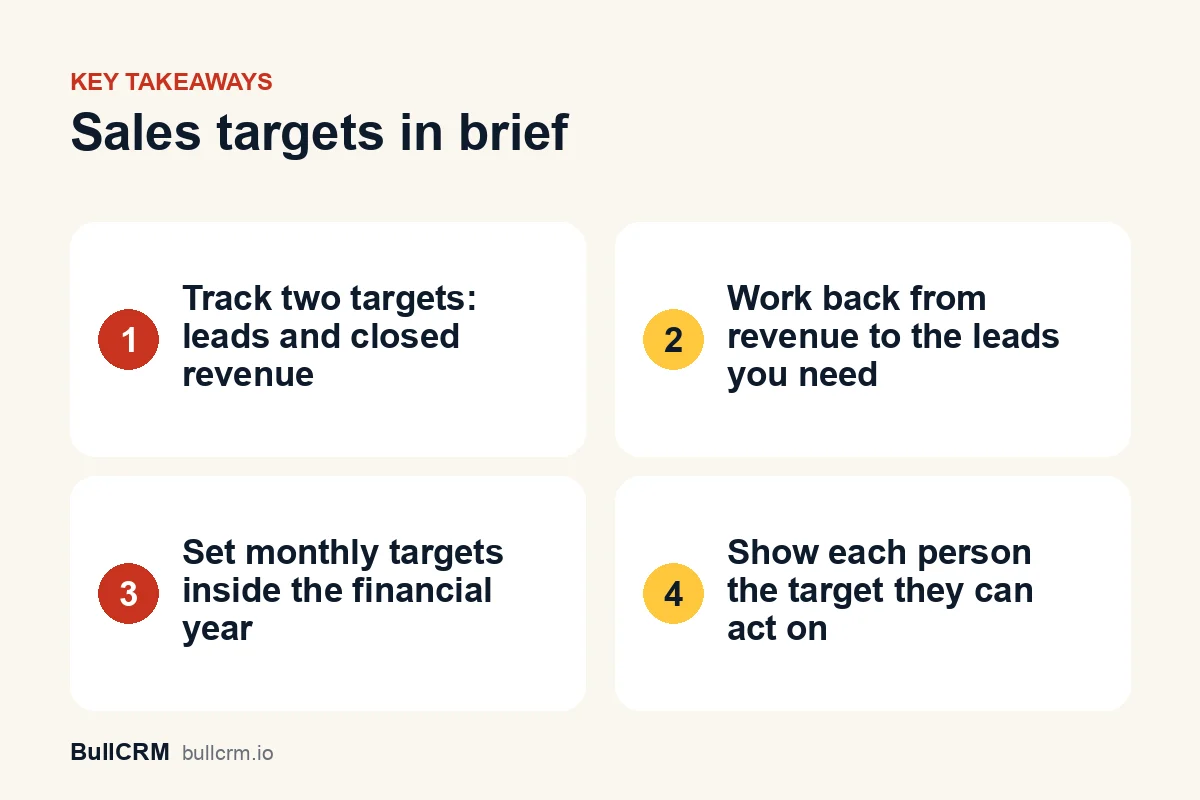
Work backwards from the revenue you need to the activity it takes. You can do this on paper in ten minutes, using your own past numbers from the CRM:
- Start with the revenue goal for the month, for the team as a whole.
- Divide by your average deal size to get the number of deals you need to win.
- Divide by your win rate to get the number of deals that must enter the pipeline.
- Divide by your lead-to-deal conversion to get the number of leads you need.
- Split the team number by person, adjusted for experience, territory and leave.
For example, say a team wants ₹10,00,000 of closed revenue in a month, its average deal is ₹50,000, it wins one deal in four and one lead in five becomes a deal. It needs 20 wins, 80 deals in the pipeline and 400 leads. These inputs are made up for the example; use your own figures from the CRM reports and dashboards.
If the leads number looks impossible, the revenue goal is too high for current demand. Either lower the target or plan how to raise lead volume, for instance with web forms that create CRM leads or Click-to-WhatsApp ads.
Monthly targets inside a financial year
Indian businesses usually plan by financial year rather than calendar year. Set twelve monthly targets that add up to the yearly plan, and allow for seasonal months such as festival periods or year-end, instead of dividing the year evenly.
Should every salesperson have a personal target?
A team target tells the owner whether the business is on track. A personal target tells a salesperson what they need to do this week. Most teams need both, but not everyone needs to see both.
- Give personal targets to people who own leads or deals. A target with no way to influence it is just pressure.
- Keep personal targets private by default. A rep should see their own number against their own results, not a league table they cannot change.
- Let managers see everything. They need the team total and each person's progress to coach and reassign work.
How do you set team and personal targets in BullCRM?
BullCRM keeps organisation targets and personal targets in separate places, and the dashboard chooses which one to show based on who is looking.
Organisation targets
Monthly lead targets live in Setup → Lead Settings, and monthly revenue targets in Setup → Deal Settings. Each month has its own value, and you edit one year at a time.
Personal targets
For users in a Sales role, open Setup → Users, choose the person and open Monthly Targets. There are two switches, one for lead targets and one for revenue targets, and a value for each month. Pick a year, fill in the months and save. A target type only applies while its switch is on.
The financial year setting
The target widgets work on your current financial year, which you set in Setup → General by choosing the month it starts. A business on an April to March year sees April to March in the period list.
How does the dashboard track progress against target?
Two widgets on the CRM and Manager dashboards show progress:
- Lead Target is a gauge that compares leads created in the period with the lead target.
- Revenue Target is a bar that compares Closed Won revenue, counted by closing date in your default currency, with the revenue target.
Each widget has one period list: This Financial Year, then each month of that financial year. Choosing the financial year adds up its twelve monthly targets. The widget shows the result, the target, the percentage reached and what remains. If a month has no target, it says so instead of showing an empty bar.
Revenue only counts once a deal is marked Closed Won with a closing date, so stage discipline matters. Our guide to sales pipeline stages covers exit criteria for each stage, and the Kanban board guide shows how the board asks for a closing date when a deal is dropped into Closed Won.
Who sees which target?
Visibility follows the "show people what they can act on" rule:
| Viewer | What they see |
|---|---|
| Admins and anyone with Manager dashboard access | Organisation targets against organisation totals. Filtering the Manager dashboard by salesperson switches to that person's personal target when theirs is switched on. |
| Salespeople with a personal target switched on | Only their own target against their own leads or Closed Won revenue |
| Everyone else | No target widget |
A salesperson sees a widget only when they are in a Sales role and that target type is switched on with a value above zero in the current financial year. Even someone allowed to view all records sees only their own target and results on these widgets.
How should you review targets each week?
A target set in April and checked in March changes nothing. A short weekly review keeps it useful:
- Open the current month on both widgets and note the percentage reached against how far through the month you are.
- If leads are behind, look at lead sources in the sales dashboard and decide where to add effort.
- If leads are on track but revenue is behind, look for deals stuck in one stage and agree next steps with each owner.
- Check that won deals have been moved to Closed Won with the right closing date, so the revenue number is current.
- Write down one action per person and check it the following week.
Automation helps the numbers stay honest. Sales automation can assign owners and create follow-up tasks when leads arrive, so new leads do not sit untouched while the month runs out.
Frequently asked questions
Should sales targets be monthly or yearly?
Set both, but run the team on monthly numbers. A yearly target is too far away to change this week's behaviour; twelve monthly targets that add up to the year give a clear checkpoint every few weeks.
Can a salesperson see the team target?
In BullCRM, no. Salespeople without Manager dashboard access see only their own personal target, and only when it is switched on. Admins and Manager dashboard users see the organisation target.
Does the revenue target include open deals?
No. The Revenue Target widget counts Closed Won revenue by closing date. Open deals show up in pipeline views and the deal forecast instead.
What happens if a month has no target?
The widget shows that no target is set for that month rather than an empty or misleading bar. Add the value in Lead Settings, Deal Settings or the person's Monthly Targets to start tracking it.
Targets work best when they come from your own numbers and sit where the team looks every day. Start a free trial to set your monthly targets and track them on the CRM dashboard. Plans and prices are on the CRM pricing page.